Blog / Guides
How to Create a QR Code (Free, Step by Step)
6 min read · 26 November 2026
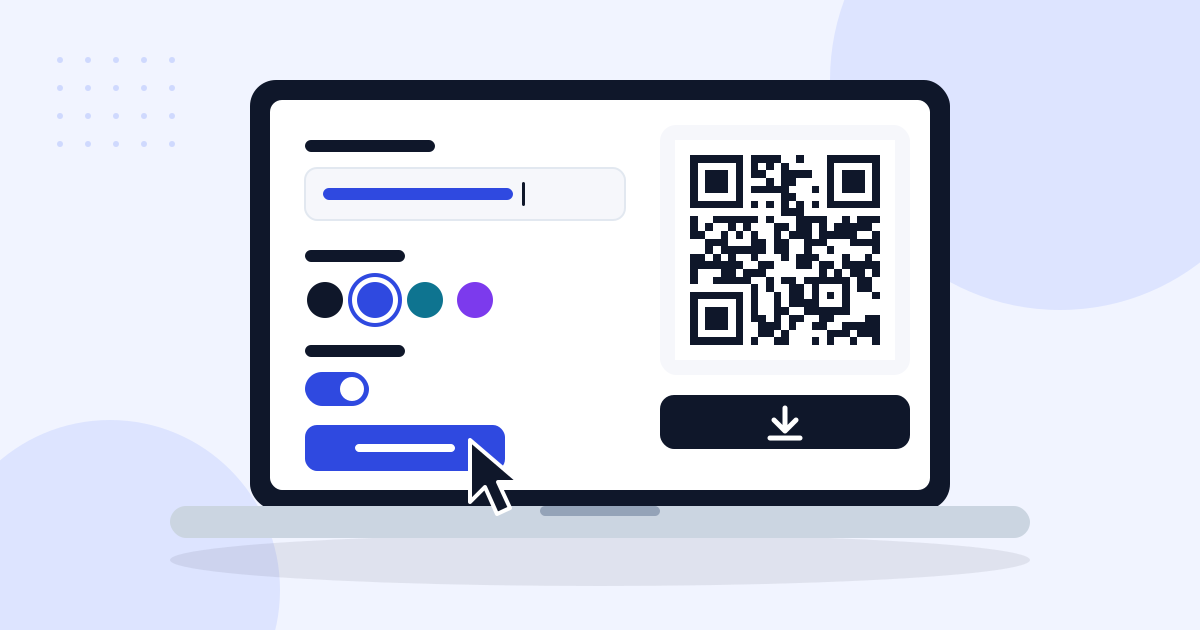
To create a QR code, open a free QR code generator, choose what the code should do (open a website, share a PDF, join Wi-Fi and so on), enter your content and download the image. The whole process takes about a minute, and on QRGeneratorBox you don’t need an account to make a code.
Making a code is easy. Making one that scans first time, looks good and still works in a year takes a little more thought. This guide walks through every step, from choosing the type to putting the code on paper.
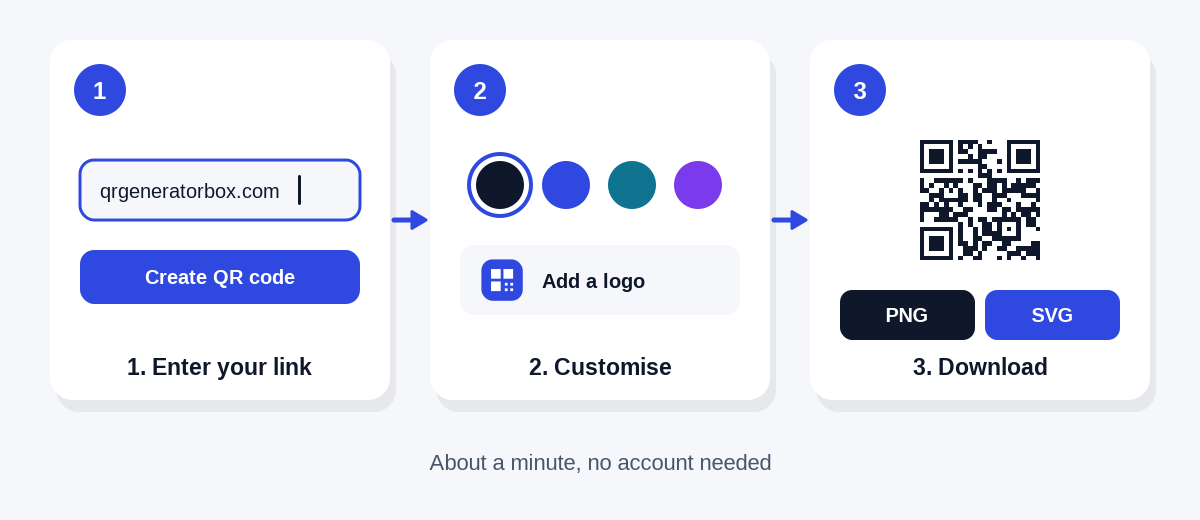
Step 1: Decide what the code should do
Every QR code has one job. Before you open a generator, be clear about what should happen when someone scans it. The most common types are:
- Website (URL): opens a web page. This covers most uses, from a shop page to a booking form or a social profile.
- PDF: opens a document such as a menu, brochure or manual. You upload the file (up to 20 MB) and the code points to it.
- Wi-Fi: connects the phone to a network without typing a password.
- vCard: saves your contact details straight into the phone’s address book.
- Text: shows a short message, with no internet needed.
- Email: opens a new email with the address, subject and message filled in.
- Phone: offers to call a number.
If you want the code to lead to something that isn’t on this list, such as an app store page, a video or a review form, use a URL code and paste the link.
Step 2: Choose static or dynamic
This is the most important decision, because it can’t be undone once the code is printed.
A static code stores your content directly in the pattern. It never expires and doesn’t depend on any service, but it can never be changed. Wi-Fi codes are always static, and so are text, email and phone codes.
A dynamic code stores a short link that forwards to your destination. Because every scan passes through that link, you get scan statistics. On the free plan, dynamic codes include basic stats (total scans, unique people, country and city), and people see a short sponsored page before being forwarded. With Pro, the sponsored page is gone, you get full statistics, and you can change the destination after printing.
A simple rule: if the content could change or you want to know how many people scan, go dynamic. If it’s permanent and you don’t need numbers, static is fine. Our guide to static vs dynamic QR codes goes into more detail.
Step 3: Enter your content carefully
Most broken QR codes are not broken at all. They point to the wrong thing.
- Copy and paste URLs instead of typing them. One missing letter sends people to an error page.
- Use the full address, including
https://. - Check the page works on a phone. A QR code is almost always scanned on mobile, so a page that’s hard to use on a small screen wastes the scan.
- For PDFs, keep the file reasonably small so it opens quickly on a mobile connection.
- For Wi-Fi, the network name and password are case-sensitive and must match your router exactly.
Step 4: Customize the colours and add a logo
A plain black-and-white code works perfectly, but a branded code tends to look more trustworthy and fits your design better. You can change the colour and add a logo in the centre.
Keep a few rules in mind:
- Keep strong contrast. A dark code on a light background is safest. Light codes on dark backgrounds can fail on some phones.
- Keep the logo small. As a rule of thumb, don’t let it cover more than about 20–25% of the code area.
- Leave a clear margin (the quiet zone) around the code.
For the full picture, read how to add a logo to a QR code.
Step 5: Download the right file format
QRGeneratorBox offers three formats:
- PNG: high resolution, good for websites, presentations, documents and most everyday printing.
- JPG: high resolution, useful when a tool or platform only accepts JPG.
- SVG: a vector file that stays sharp at any size. Use it for professional printing, large posters, signs and packaging, or when handing the code to a designer.
If you’re not sure, download both PNG and SVG. It costs nothing and saves you coming back later.
Step 6: Test before you print
Never print a code you haven’t scanned yourself. Testing takes two minutes and can save a whole print run.
- Scan the code from your screen with an iPhone and an Android phone, using the built-in camera app.
- Check that it opens the right page, file or action.
- Print a single test copy at the real size and scan it again from the distance people will actually use.
- Try it in the lighting where it will be placed, for example a dim restaurant or a bright shop window.
If anything goes wrong, our QR code troubleshooting guide covers the usual causes.
Step 7: Print it at the right size
Size depends on scanning distance. A code on a business card or flyer is scanned from close up, so around 2–3 cm wide usually works. A poster on a wall needs to be much larger. A common guideline is that the code should be roughly one tenth of the distance it’s scanned from.
A few more printing tips:
- Use matte paper where you can. Gloss reflects light and can hide part of the code.
- Avoid tight curves. A code wrapped around a narrow bottle may not scan.
- Add a short call to action such as “Scan to see the menu” so people know what they’ll get.
See our QR code print size guide for detailed measurements.
Step 8: Manage and track your codes
You can create codes without an account. If you want to keep your codes in one place and see scan statistics, create a free account. From there you can check how each dynamic code is performing by country and city.
If you need to point a printed code to a new page later, that’s a Pro feature. Read how to change a QR code link after printing for how it works.
Common mistakes to avoid
- Printing a static code for content that will change. A new menu or price list means new codes.
- Linking to a page that isn’t mobile-friendly.
- Low contrast designs, like light grey on white or yellow on orange.
- Printing too small for the scanning distance.
- Skipping the test scan.
FAQ
Is it really free to create a QR code?
Yes. QRGeneratorBox is free forever with unlimited codes, and you don’t need an account to create one. An account is only needed to manage codes and see statistics.
Do QR codes expire?
No. Codes created on QRGeneratorBox never expire. A static code works as long as its content is valid, and dynamic codes keep working even if you cancel Pro.
Which format should I download for printing?
SVG is best for printing because it stays sharp at any size. A high-resolution PNG also works well for most everyday prints.
Can I change a QR code after I print it?
Only if it’s a dynamic code and you’re on Pro. Static codes, including all Wi-Fi codes, can’t be changed once created.
Create your first QR code
You now have everything you need to make a code that scans reliably and looks good. Open the URL QR code generator, paste your link, add your colours and logo, and download your code in under a minute.