Blog / Guides
QR Code Not Scanning? 10 Common Causes and How to Fix Them
6 min read · 26 November 2026
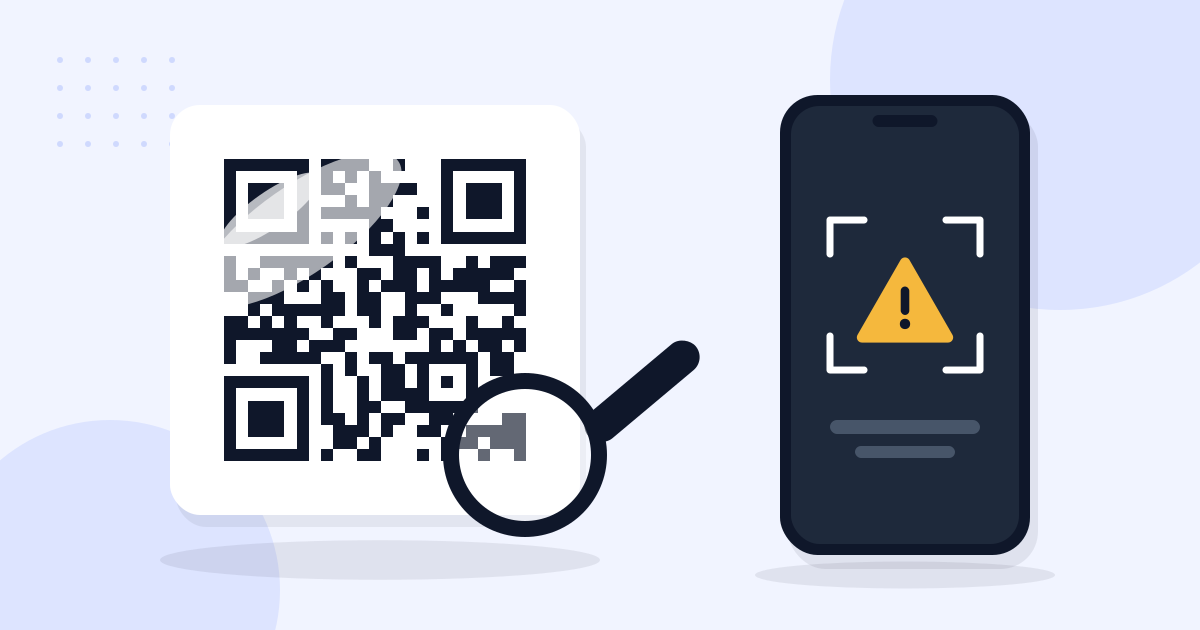
A QR code usually fails to scan because of poor contrast, a print that’s too small for the distance, a missing margin around the code, or a blurry or reflective surface. If the code scans but nothing useful opens, the problem is the destination, such as a broken link or a mistyped Wi-Fi password, not the code itself.
The good news is that almost every problem has a simple fix. Work through the causes below in order, starting with the quickest checks.
First, a quick check on the phone
Before blaming the code, rule out the phone:
- Use the built-in camera app. Current iPhones and Android phones read QR codes directly. Point the camera and wait a second for the prompt.
- Check QR scanning is enabled. On some Android phones it’s a setting in the camera app or available through Google Lens.
- Clean the lens. A fingerprint smudge is enough to blur the image.
- Try a second phone. If one phone scans and another doesn’t, the code is probably borderline and needs a design or size fix.
1. Poor contrast
Phones read a QR code by telling dark modules from light ones. If the colours are too similar, the camera can’t separate them.
Fix: use a dark code on a light background. Black, navy or dark green on white is safest. Avoid pale colours such as yellow, light grey or pastel shades for the code, and avoid placing it on a mid-tone background. See QR code colours and contrast for safe combinations.
2. Inverted colours
A light code on a dark background can look great, but some phones and scanner apps don’t read inverted codes reliably, because the standard expects dark modules on a light background.
Fix: switch back to a dark code on a light background. If your design really needs an inverted look, place the normal code inside a light box, and test it on several phones.
3. Code too small for the distance
A code that scans fine on a business card can fail on a poster across a room. The further away people stand, the larger the code must be.
Fix: a common guideline is that the code’s width should be about one tenth of the scanning distance. For close-up items such as cards and flyers, around 2–3 cm works. For wall signs and posters, go much larger. Our QR code print size guide has measurements for common uses.
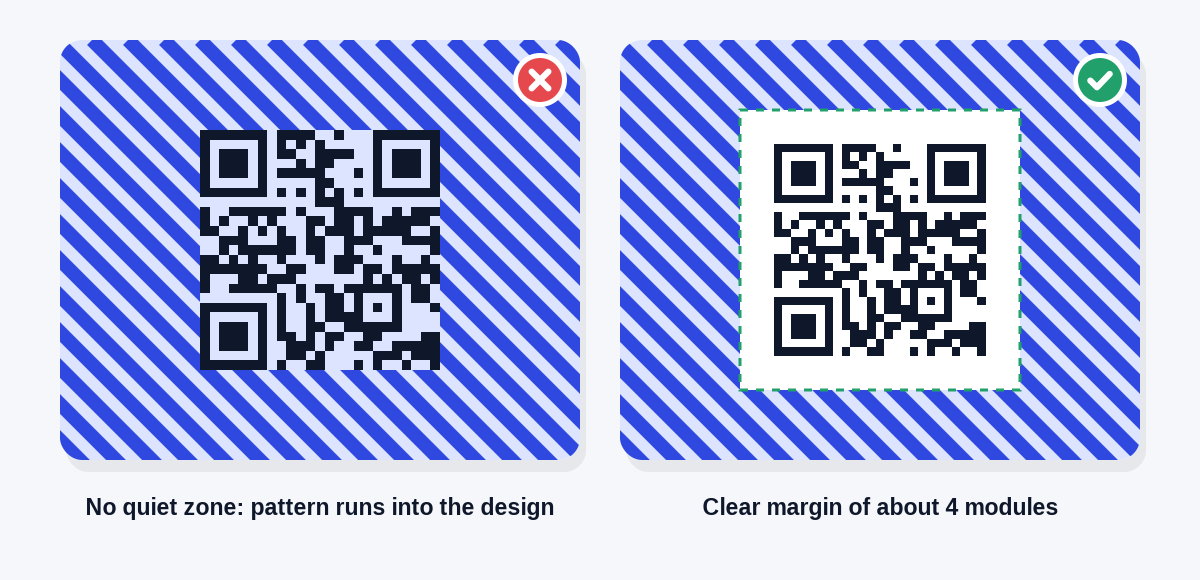
4. No quiet zone
The quiet zone is the empty margin around the code. It tells the phone where the code begins. When text, a border or a picture runs right up to the edges, the phone gets confused.
Fix: keep a clear light margin of about four modules on every side. Don’t crop the image tight in your design file, and don’t place the code on a busy background.
5. Blurry or low-resolution image
A small PNG stretched to fit a large print turns sharp edges into fuzzy grey ones. Cheap printing, ink spread on absorbent paper or a compressed image sent by messaging app can do the same.
Fix: download the code in high resolution, or use SVG for print. SVG is a vector format, so it stays sharp at any size. When sending files to a printer, send the original download, not a screenshot.
6. Glossy or reflective surfaces
Glossy paper, laminated menus, glass, metal and shiny plastic can reflect light straight into the camera. A bright patch over part of the code hides those modules.
Fix: print on matte material where possible. If the surface must be glossy, place the code where lights won’t reflect off it, or ask people to tilt their phone slightly. For window stickers, check how the code looks from outside in daylight.
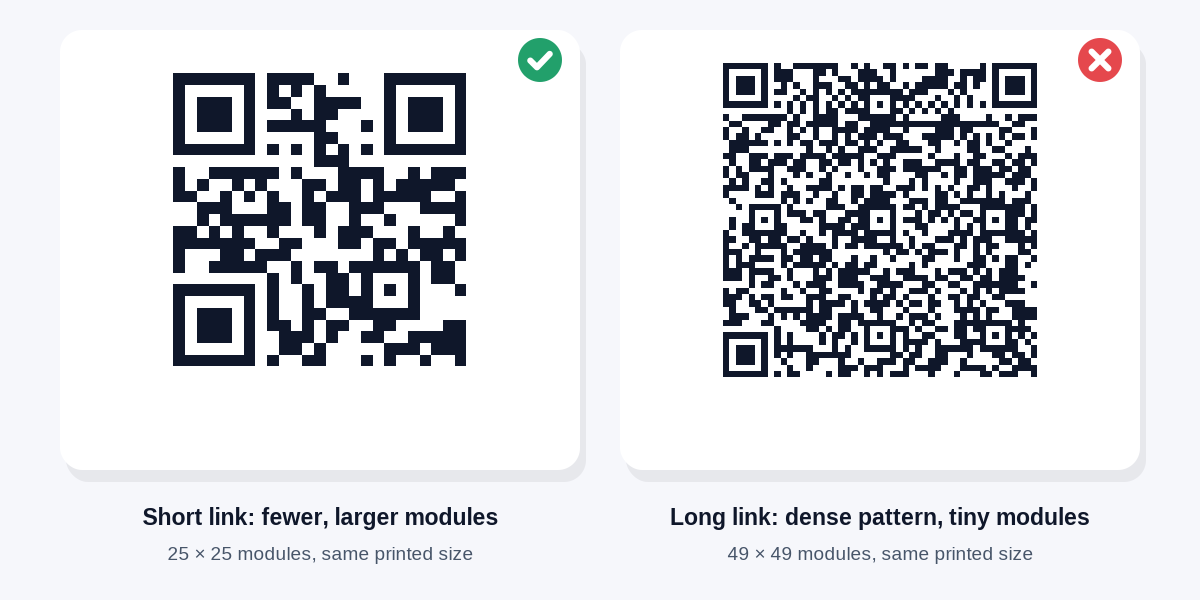
7. Too much data in a static code
A static code stores everything inside the pattern. A long URL with tracking tags, a long text message or a full vCard creates a very dense code with tiny modules. Dense codes are hard to read, especially when printed small.
Fix: shorten the content, or use a dynamic code. A dynamic code only holds a short link, so the pattern stays simple whatever the length of your real address. Read static vs dynamic QR codes to decide which fits.
8. Logo too big
A logo in the centre works thanks to error correction, the backup data built into every QR code. But that backup has limits. A logo that’s too large, or one that covers a corner square, makes the code unreadable.
Fix: keep the logo to about 20–25% of the code area at most, keep it centred, and never cover the three large position squares in the corners. Our guide to adding a logo to a QR code explains the details.
9. Curved or uneven surfaces
A code wrapped around a narrow bottle, cup or tube bends out of shape. Fabric, folded paper and textured surfaces distort it too.
Fix: place the code on the flattest part of the item, make it smaller relative to the curve, or move it to a flat label or tag. Test on the real object, not just on paper.
10. The destination is broken
Sometimes the code scans perfectly, but the result is wrong. The phone opens an error page, a blank screen or the wrong thing. That isn’t a scanning problem; it’s a content problem.
Common culprits:
- A typo in the URL, or a link to a page that has since been deleted or moved.
- A page that doesn’t work on mobile.
- Wi-Fi details that don’t match the router, such as a wrong capital letter or security type. Wi-Fi codes are always static, so if the password changed, you need a new code.
- A PDF that’s too large to open quickly on a slow connection.
Fix: open the destination on your phone and check it works. If it’s a static code, create a new one with the right content. If it’s a dynamic code, Pro lets you change the destination without reprinting. See how to change a QR code link after printing.
A note on the sponsored page
If you’re using a free dynamic code, people see a short sponsored page before they’re forwarded to your destination. That’s normal and means the code is working. If you’d rather scans go straight to your link, Pro removes it.
How to test a code properly
Most of these problems are easy to catch before printing:
- Scan the code on screen with at least one iPhone and one Android phone.
- Print a single copy at the real size and on the real material.
- Scan it from the real distance, in the real lighting.
- Try a slight angle, not just straight on.
- Check that the right page, file or action opens.
FAQ
Why does my QR code scan on one phone but not another?
The code is probably borderline: slightly too small, low in contrast or very dense. Different cameras handle that differently. Increase the size, improve contrast or simplify the content.
Do QR codes stop working over time?
Codes created on QRGeneratorBox never expire. If an old code stops working, the usual cause is physical damage or a destination page that no longer exists.
Can a damaged QR code still scan?
Often, yes. Error correction lets phones read a code with small scratches or stains. Heavy damage, or damage to the corner squares, usually stops it working.
Is SVG better than PNG for printing?
For print, yes. SVG stays sharp at any size. A high-resolution PNG is fine for screens and most small prints.
Create a code that scans first time
The surest fix is starting with a clean design: dark on light, a clear margin, a modest logo and a sensible size. Open the URL QR code generator, make your code, and test it on two phones before you print.