Blog / Marketing
Instagram QR Code: Link to Your Profile, TikTok or Bio Page
5 min read · 26 November 2026
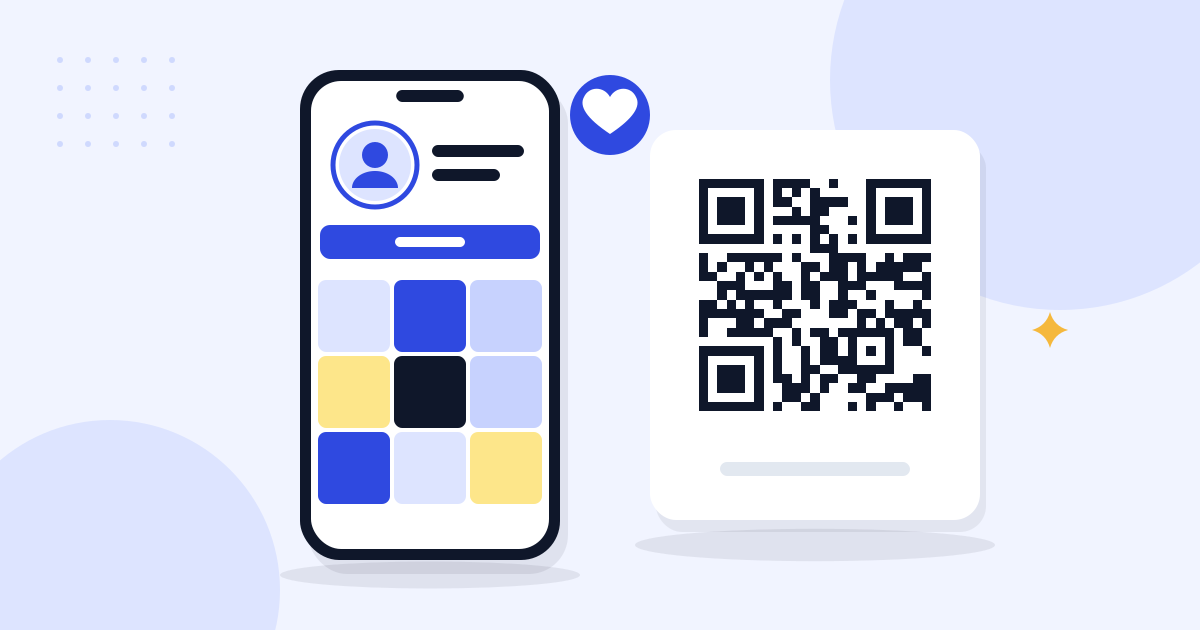
An Instagram QR code is a URL QR code that points to your profile address, such as https://www.instagram.com/yourname, so anyone who scans it lands on your profile and can follow you in one tap. The same method works for TikTok, Facebook, X, LinkedIn and any other social network with a public profile link.
Social apps have their own built-in codes, but making your own from the profile link gives you more control over design, file format and, with a dynamic code, where the code points later.
Why make your own social QR code?
Instagram, TikTok and other apps let you share a profile code from inside the app. That is fine for a quick share, but a code you make yourself has a few advantages:
- High-resolution and vector files. You can download PNG, JPG or SVG for crisp printing on signs, packaging and banners.
- Your own colours and logo, so the code matches your brand rather than the app’s style.
- One code for several profiles, if you point it to a link-in-bio page instead of a single network.
- Statistics and flexibility with a dynamic code: see where scans come from and change the destination later.
Step 1: Find your profile link
Your profile link is usually the network’s address followed by your username.
- Instagram:
https://www.instagram.com/yourname - TikTok:
https://www.tiktok.com/@yourname - Facebook, LinkedIn, X and others: open your profile in a browser and copy the address, or use the app’s Share profile or Copy link option.
Check the link by opening it in a private browser window on your phone. Make sure it shows the right account and that the account is public, or people who scan it won’t see your posts.
Step 2: Create the QR code
- Open the URL QR code generator.
- Paste your profile link.
- Pick your colours and add your logo or profile icon in the centre if you want. Keep strong contrast; our guide to QR code colours and contrast explains what scans reliably.
- Download as PNG or JPG for screens and social posts, or SVG for print.
- Test it on both an iPhone and an Android phone.
When the code opens on a phone with the app installed, it usually opens the app directly at your profile. Without the app, it opens the profile in the browser.
One code, many profiles: link-in-bio pages
If you are active on several networks, choosing one profile for your code can feel limiting. A link-in-bio page solves that. It is a simple web page that lists all your profiles, your shop, latest video and anything else you want to promote.
You can point your QR code to:
- a link-in-bio page you already use,
- a page on your own website that lists your social accounts (see QR code for a website),
- a specific post, reel or campaign landing page.
The QR code doesn’t care what kind of page it opens. As long as it is a web address, it works.
Use a dynamic code to switch profiles or campaigns
Social media moves quickly. You might rename your account, start a new one, or want a printed code to promote a different campaign next month. With a static code, the link is fixed forever.
A dynamic code stores a short link that forwards to your destination. On QRGeneratorBox:
- Free dynamic codes include scan statistics such as total scans, country and city, and show a short sponsored page before redirecting.
- Pro lets you edit the destination after printing, removes the sponsored page and adds full statistics.
That means one sticker on your shop window or product box can send people to your Instagram this month and your TikTok launch next month, without reprinting. Our guide on changing a QR code link after printing covers how that works.
Where to use a social media QR code
In your shop or venue
Put it on the counter, the door, mirrors in fitting rooms or the wall behind the till with a line like “Follow us for new arrivals”. Customers who just enjoyed a visit are the most likely to follow.
On packaging and labels
A small code on a box, bag or product label invites buyers to see how others use the product or to tag you in their own posts. See QR codes on packaging for size and placement.
On business cards
Creators, photographers, stylists and freelancers often get more value from a portfolio profile than a phone number. A code on the card does the job; see QR code business card.
At events and pop-ups
A code on a banner, table sign or badge helps people follow you while they are still at your stand. More ideas are in QR codes for events.
On flyers and posters
Pair the code with a reason to follow, such as “Behind the scenes every Friday” or “Giveaway results posted here”.
Tips for more follows
- Tell people what they’ll get. “Follow us” is weak. “Daily recipes”, “New drops every Thursday” or “See the making-of” is stronger.
- Show the handle as text, too. Print
@yournameunder the code for people who prefer to search. - Add the network’s name. People like to know which app will open before they scan.
- Keep your profile ready. A clear bio, a pinned post and recent content make the scan worth it.
- Make it big enough. For arm’s-length scanning, around 2.5–3 cm is the minimum; larger for posters. See the print size guide.
FAQ
Can I make an Instagram QR code for free?
Yes. On QRGeneratorBox you can create unlimited codes for free, no account needed, and they never expire.
Does the same method work for TikTok?
Yes. Copy your TikTok profile link and create a URL QR code from it. The same applies to Facebook, LinkedIn, X, YouTube and other networks.
What happens if I change my username?
Your old profile link may stop working. A static code would then need replacing. With a Pro dynamic code, you just update the destination to your new profile link.
Can I see how many people scanned my code?
Yes, with a dynamic code. Free dynamic codes show scans by country and city; Pro adds devices, browsers and languages.
Create your social media QR code
Copy your profile or link-in-bio address, open the URL QR code generator, and download a code in PNG, JPG or SVG. It takes a minute and it is free.